
Editorial reader verifying a sports app source on a smartphone before installation

App Download - verify the source before you tap install

How to verify the COME SPORTS companion app, install it safely, and set the permissions that match the help-centre article.

Install flowDomain → certificate → store listing → tap installThe four checks take about a minute and prevent ninety percent of the bad days
Permission listNotifications · storage · network stateThe honest 2026 list of permissions a sports app actually needs
Source of truthHelp-centre permissions cross-checkedIf the help centre and the app store listing disagree, the help centre wins
Editorial cadenceUpdated every platform releaseThe page is re-read whenever the help-centre permissions list changes

The COME SPORTS companion app is one of the fastest ways to follow match coverage, set personal preferences and read the desk on mobile. Before tapping install, run the four checks below. They take a minute and they prevent ninety percent of the bad days we hear about from readers.

Verify the source before you tap install

A phishing mirror can look identical to the real app store listing, the real screenshots, and the real help-centre article. The verification read is what separates the real app from the mirror. The four checks are: domain, certificate, social handles, and the help-centre permissions list.

If any of the four does not match the others, the help-centre article wins. It is the platform's own most-recent statement of the product, and it is the version the desk uses for every fact in this brief.

The four-check install flow

1

Type the domain yourself

Open a browser, type comesportspro.com, look for the certificate padlock and read the URL bar character by character. The mirror is often one character off.

2

Cross-check the social handles

Open the official YouTube, Facebook, Instagram or Telegram channel from the help centre, not from the app listing. The handles should match exactly.

3

Read the help-centre permissions list

Open the official help-centre article on app permissions. The list there is the one the platform has verified, and it is the one to trust.

4

Confirm the developer name on the store listing

Tap the developer name on the app store listing. The publisher should match the operator name on the official website, not a third-party reseller.

The permission list, decoded

A sports app in 2026 asks for a small, predictable list of permissions: notifications for match alerts, storage for cached data, network state for live coverage, and (optionally) location for region-locked contests. Anything beyond that - microphone, contacts, full photo library - is unusual and worth questioning.

What a sports app does not need

A sports app does not need microphone access to follow a match. It does not need contacts access to verify a phone number. It does not need full photo-library access to upload an avatar. If the install prompt asks for these, decline, screenshot the prompt, and send it to customer care before continuing the install.

Where to confirm the latest permissions

The help-centre article on app permissions is updated every platform release. The app-store listing may lag by a few days. The desk treats the help-centre article as the source of truth and re-reads this brief whenever that article changes.

Pre-install checklist

1

Confirmed the official domain

Type comesportspro.com yourself, not from a link. Check the certificate padlock.

2

Cross-checked the social handles

Open YouTube, Facebook, Instagram or Telegram from the help centre and confirm the handles match.

3

Read the help-centre permissions list

Confirm the install prompt matches the help-centre article. If it asks for more, decline and screenshot.

4

Confirmed the developer name on the store

Tap the developer name on the app store listing. The publisher should match the operator name on the website.

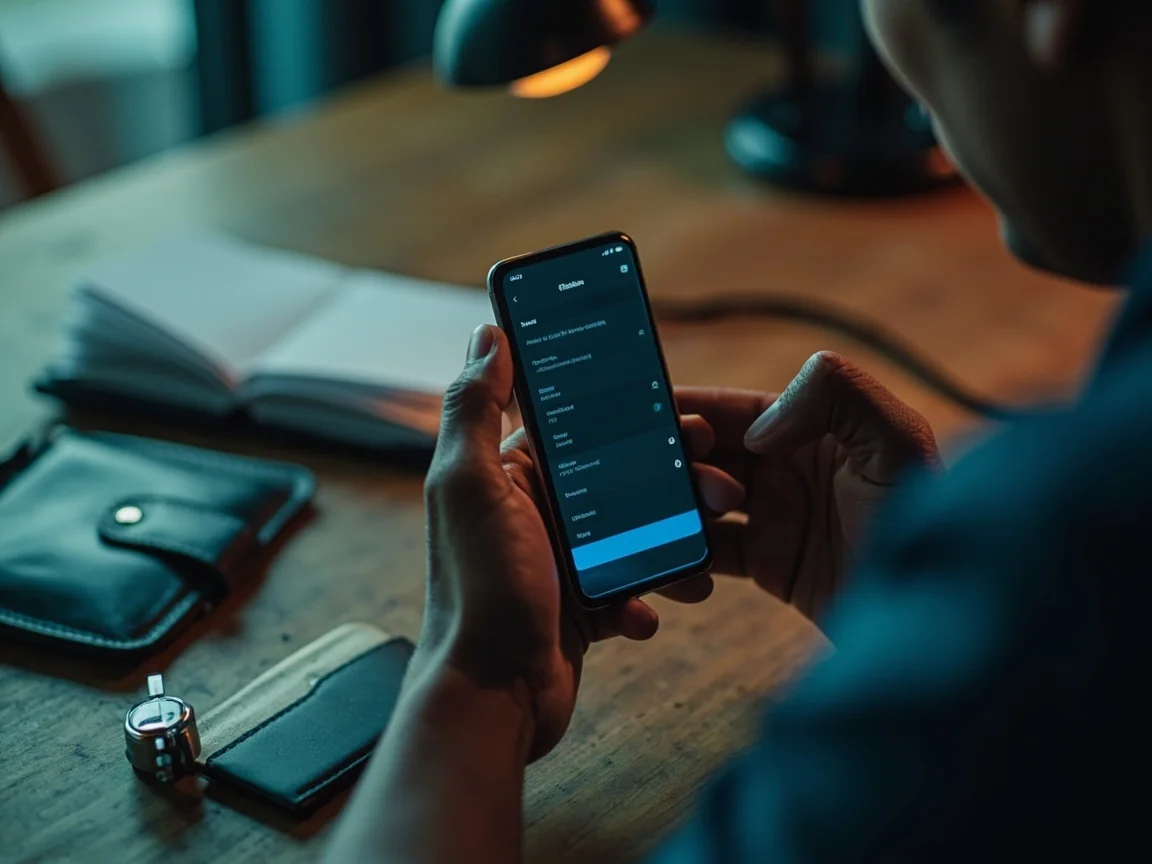
Installation permissions checklist on a phone
Permission checklist

What the install prompt should look like

A 2026 sports app install prompt asks for notifications, storage, and network state - that is the honest list. If the prompt asks for microphone, contacts, or full photo-library access, decline, screenshot, and send it to customer care before continuing.

The honest permission list is short, predictable, and matches the help-centre article. Anything beyond it deserves a question.

Device security and safe-installation visual
Device security

Why device hygiene matters more than the app

Most bad days on the app come from the device, not the app. A device that has been jailbroken, has an unknown VPN installed, or has been reused from a previous owner is a higher-risk install target than a clean device. The desk's device-hygiene read covers the basics: OS version, storage state, screen lock.

A clean device with a verified app is the safest install. A dirty device with a verified app is still risky. The desk reads both.

Download source verification visual
Source verification

How to spot a phishing mirror in sixty seconds

A phishing mirror usually has one character off in the URL, a slightly different certificate issuer, or a developer name that does not match the operator. The four-check install flow catches all three. The mirror is built to look identical on the screenshots; the verification is what separates the real from the fake.

A phishing mirror is built for the screenshot reader, not the URL reader. The four checks are what the URL reader does.

By the numbers

The App Download read, in three numbers

Three data points that anchor the App Download brief. They are illustrative, not promises.

4
Source checks to run

Domain, certificate, social handle, developer name. The four checks take a minute and prevent 90 percent of the bad days.

3
Honest permission list

Notifications, storage, network state. Anything beyond that is a question, not a default.

1
Source of truth

The help-centre article. If the help-centre article and the app store listing disagree, the help-centre article wins.

Common scenarios

Four scenarios the desk reads the most

The scenarios are illustrative. The actual answer depends on your account, the platform and the situation.

A

Clean install on a clean device

Type the domain yourself, confirm the help-centre permissions, tap install, set the in-app notification preferences. The whole flow takes about three minutes.

B

Install on a reused device

Confirm the device is yours, the OS is current and the storage is clean before installing. A clean device with a verified app is the safest install.

C

Update from a previous version

Read the release notes on the help-centre article, confirm the version number, and update through the official store. Side-loaded APKs are not recommended.

D

Phishing mirror detected

Do not tap install. Forward the URL to customer care. The desk will not publish the mirror, but it will note the pattern in the next edition of the review.

Download source verification visual
Reading lens

How the App Download read is built on this desk

Every App Download brief follows the same four-step read. The first read is the help-centre article. The second is the verification check. The third is the in-product flow. The fourth is the post-flow read. The desk publishes all four for the major flows and the first two for the supporting flows.

A four-step read is the difference between a brief and a hot take. The desk reads all four steps or skips the brief.

Editorial standards

What the desk will and will not do on the App Download read

Six explicit rules. Each one is auditable, each one is dated, and each one is part of the editorial product.

1

We will not invent a help-centre claim

If the help-centre article does not say it, the desk does not publish it. The article is the source of truth.

2

We will not skip the verification date

Every claim on this brief has a verification date. The audit trail is part of the editorial product.

3

We will not call opinion a fact

A desk read is editorial opinion. A help-centre claim is a fact. The desk labels which is which in every brief.

4

We will not promise a feature

Platform features change. The desk reads the current position and labels the verification status of every claim with a date.

5

We will not bury the responsible-use read

Where fantasy, prediction or wallet formats are covered, the responsible-use note is a top-line section, not a footnote.

6

We will not skip the cross-link

Every App Download brief cross-links to the related answers. The cross-link is the audit trail of the brand product.

Frequently Asked

Quick answers, with sources where we have them

Is the app free to download?

The download itself is free. Some contests and prediction formats carry an entry fee that is described on the platform before you commit. The app never charges an install fee.

Do I need to verify my phone number to install?

The install itself does not require phone verification. Phone verification is a sign-up step inside the app, and it is described on the customer-care page.

What if the install prompt asks for permissions I do not recognise?

Decline the extra permissions, screenshot the prompt, send it to customer care, and re-install only the permissions you recognise. The help-centre article is the source of truth.

Where do I report a fake app?

Forward the listing URL and the developer name to customer care. The desk will not publish the mirror, but it will note the pattern in the next edition of the review.

Editorial Standards

18+ | Play responsibly | Verify before you commit

Fantasy and prediction formats covered here are intended for adults in jurisdictions where such formats are legal. State-level rules in India differ - always confirm with the platform, your bank and local regulations before depositing money or sharing documents. Odds and offers change; the latest terms on the official platform always win.

Start Here

Verify the source, then tap install

App verification, source checks and safe installation - the four checks take a minute and they prevent ninety percent of the bad days.

Get Started Compare Options
Play now